How To Know Laptop Battery Life In 2026

Wondering how to know laptop battery life and whether your battery is still healthy? Most people don’t check, they just have a sense that their laptop does not last as long as it did. It only takes a few minutes to learn how to determine the life of a laptop battery, and it puts an end to the guessing game and gives you a reliable number.
In this guide you will learn how to know laptop battery life, how to check your laptop battery health, how to calculate realistic runtime, and how to spot the signs of battery wear. This is one of the most helpful 5 minute tests you can perform on any laptop, and by the end of this guide you’ll be able to do it yourself.
Key Takeaways
- You can check the health of your battery for free on both Windows and macOS.
- To estimate battery life, you can use a battery life calculator that takes the battery capacity and your average power consumption into account.
- The average laptop battery life is 2-5 years or about 300-500 full charge cycles.
- The most obvious indicator that it’s time to replace a battery is if it has a battery health report that indicates that it has less than 80 percent of its original capacity.
- If your laptop is slow, it could be a battery issue or it could be something else entirely, knowing your actual battery health can help you make the decision.
Understanding your laptop battery life means you know two things:
How much charge capacity your battery has at present, and how many hours of use you can expect from a full charge today. These are two numbers that are frequently mixed up.
Why do these two numbers get confused so easily?
Battery health is often mistaken for battery runtime, which both present as percentages or hours, but one indicates the long term condition of the battery, and the other indicates how much charge is left in the battery during the current session. If a battery is at 100 percent charge now, it may only have 70 percent of its “ju-ju” left, so it will deplete that 100 percent charge at a faster rate than before.
To check the health of the laptop battery on Windows
Checking laptop battery health on Windows is very simple and only takes about two minutes, as there is a built-in command that can generate a detailed report.
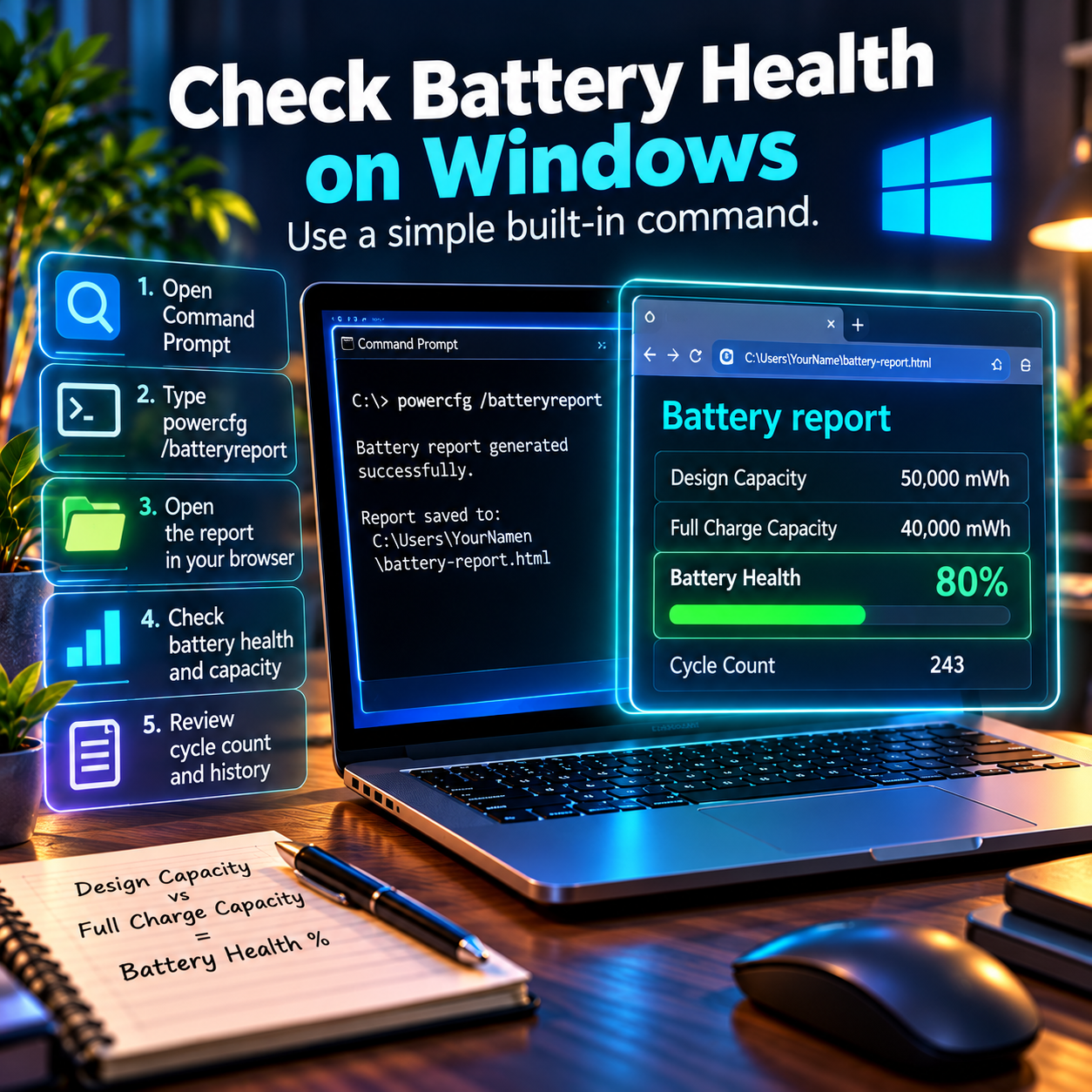
Step 1: Open Command Prompt. Type Command Prompt in the Windows search bar and click it, this command does not require administrator privileges.
Step 2: Enter the battery report command. To create a report, type powercfg /batteryreport and press enter, an HTML file will be created and you will be told where it is.
Step 3: Go to the report in your browser. Go to the location of the file (typically your user folder) and double click the HTML file to open it in any web browser.
Step 4: Compare Design capacity vs Full charge capacity. You can see the difference between the original design capacity and the current full charge capacity of your battery in the report, which indicates exactly how much health your battery has lost.
Step 5: Review your cycle count and cycle history. There is also a section at the bottom of the report that gives you a history of how much battery capacity you’ve lost in the last few months, so you can see if there is a slowdown that could be a problem.Once you know your numbers, you can see Microsoft’s own tips for stretching your battery further directly from their support site.
What is the meaning of the numbers in a Windows Battery Report?
The design capacity number is the amount of capacity your battery would have when new, the full charge capacity is the amount it currently has, and dividing the second number by the first yields your battery’s health percentage. If a battery has a 50,000 mWh design capacity and now has 40,000 mWh full charge capacity, it has 80 percent health and is typically considered to be at the point where replacement becomes a possibility.This is one of the easiest ways to understand how to know laptop battery life and its current health.
To check the health of your laptop battery on a Mac computer, follow these steps:
It’s even easier to check the battery health on a MacBook as Apple included a dedicated section in System Settings.
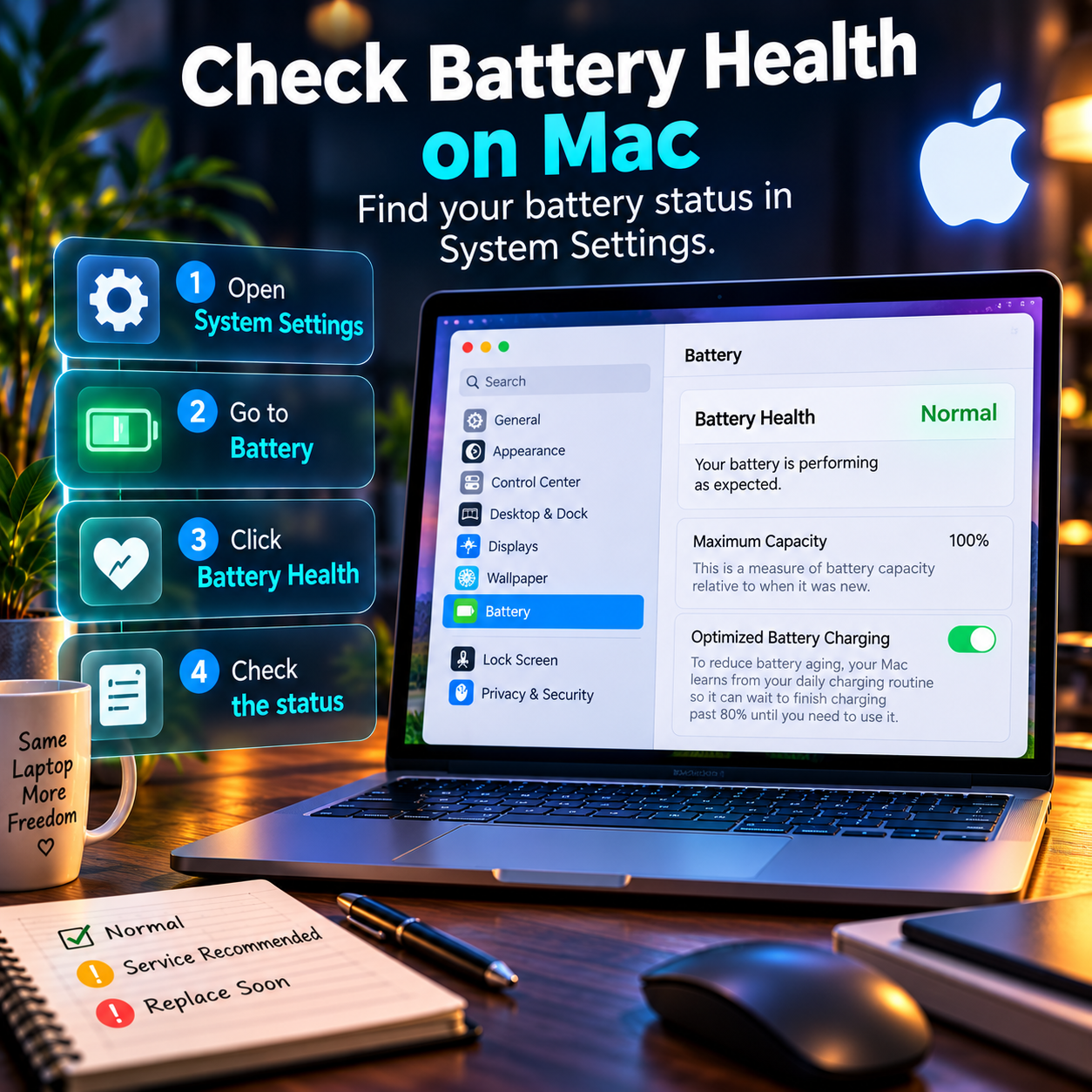
Step 1: Go to the System Settings. In the top left corner, click the Apple icon and then select System Settings from the drop-down menu.
Step 2: Go to Battery. Click on Battery in the sidebar to get an overview of your battery charge and usage history.
Step 3: Click Battery Health. In the Battery section, you’ll find Battery Health, which displays a status indicator instead of a percentage on most MacOS versions.
Step 4: Read the label on your battery. MacBooks will usually display one of three labels here: Normal, Service Recommended, and Replace Soon, which provide a simple, easy-to-understand indication of the battery’s condition.
Why does Mac display a label rather than a percentage, as does Windows?
A simplified condition label is shown for macOS because most users prefer a clear status label such as Normal or Service Recommended to a number that needs to be interpreted. Third party tools such as Coconut-battery can extract the more granular cycle count and capacity data from the same system information Apple uses internally for those who wish to have the actual underlying percentage.
The battery life is calculated with a simple formula.
If you know how to work it out yourself, you will be able to get a realistic idea of how long your battery will last, rather than just the manufacturer’s advertised figure, which is generally calculated under ideal conditions of low usage.

The formula for a battery life calculator is simple. The runtime in hours is the battery capacity (in watt hours) divided by the average power consumption (in watts).
For instance, if a laptop computer has a battery capacity of 58 watts hours and is used for a light use such as editing documents at an average power of 7 watts, it should run for about 8 hours. That same laptop, used for a heavy application such as video editing, at an average draw of 25 watts, would realistically be used for around 2.5 hours.
How to find the real power consumption of my laptop?
another useful part of learning how to know laptop battery life is understanding how much power your laptop actually uses. Windows and macOS have built-in tools that allow you to see your actual wattage usage as you use your computer, including the Performance tab of Task Manager on Windows and the Energy tab of Activity Monitor on macOS, which give you a view of your true wattage use as opposed to just a manufacturer’s advertised average.
How To Know Laptop Battery Life
The average laptop battery life on a single charge is around 6 to 12 hours for typical use, such as browsing the web or working on documents, but this can differ depending on the specific laptop and its usage.

When learning how to know battery laptop life, it is important to remember that battery performance varies by laptop type. In general, ultrabooks and Apple Silicon MacBooks tend to give a battery life of 12 to 22 hours with light usage, while gaming laptops and workstation class devices are more likely to report 3 to 6 hours with light usage, as they have many more power hungry components. Typical laptop battery life in years (not hours per charge) is generally 2 to 5 years or approximately 300 to 500 full charge cycles before most users would consider replacing the battery.
| Laptop Type | Average hours per charge | Typical Years Before Replacement |
| The Ultrabook or MacBook Air style. | Use for 10-20 hours of light | 3 to 5 years |
| Standard business laptop | Use light for 6-10 hours. | 2 to 4 years |
| Gaming laptop | 3 to 6 hours light use. | 2 to 3 years |
| A budget or entry level laptop is also a good choice. | 4 to 8 hours light use | 1.5 to 3 years |
Once you have your numbers, how do you extend the battery life of your laptop?
Knowing how to monitor laptop battery health and understanding your current battery numbers, a few consistent habits slow the further decline of the battery.

Here are the top tips to extend laptop battery life:
- Not allowing your charge to drop below 20 percent or exceed 80 percent of its full capacity
- Preventing heat exposure (above 35 degrees Celsius), as it significantly accelerates battery ageing
- If you have a ‘charge limit’ feature on your laptop, use it, as it will automatically limit charging to 80-90 percent.
- Dimming the screen and closing background apps to conserve power
- Monitoring battery health reports periodically every few months to detect a downward trend early rather than late, when the problem has become serious.
Does regular checking of battery health really help to prolong battery life
Knowing how to know laptop battery life can help you keep track of changes in your battery over time. Regularly checking battery health does not directly prolong battery life but provides the information to identify issues early and make changes to the way you use your battery before its life begins to diminish. If you regularly review your battery report and find that your battery is losing capacity more rapidly than it should, you can look into the issue and try to fix it, such as keeping your battery in cooler temperatures or not charging it to full capacity, before it causes more serious damage.
You can compare the battery health indicators on different devices.
| Indicator | Windows | MacBook |
| How to access it | Command Prompt battery report | System Settings, Battery, Battery Health |
| Format shown | Raw capacity numbers in mWh | Simple condition label |
| Cycle count shown | Yes, in the detailed report, | Yes, using third party tools such as CoconutBattery |
| Replacement threshold | Approximately 80 per cent of design capacity | Text changes to Service Recommended |
| Extra software needed | No | No, for basic check |
FAQ
What is the battery life of the laptop without doing any additional software?
If you want to know how to know laptop battery life without extra software, the built-in tools are enough for a basic check. There are no third party tools needed for a basic check as there are free built-in tools for both Windows and macOS: Battery report command in Windows and Battery Health section in System Settings in macOS.
What is a normal laptop battery life for a 2-year-old laptop?
After 2 years of normal use, a laptop with a normal charge and heat usage during the period will retain between 80 and 90 percent of its original battery health.
How to work out battery life if I don’t know the exact wattage of my laptop?
Your average power draw can be determined in the Performance tab of Task Manager on Windows or the Energy tab of Activity Monitor on macOS, and then you can use the watt hour capacity of your battery divided by this average power draw to estimate how long you can run for.
Is it normal that the battery life of a normal laptop varies widely from what they claim in their advertising to what they actually get?
Yes, manufacturer advertised battery life numbers are typically conducted under very light, controlled usage and conditions, and actual battery life when using a browser with multiple tabs open, and having apps running in the background, is often significantly less than the advertised value.
What can I do if my laptop doesn’t have a charge limit feature to extend its battery life?
Even without any specific software to automate the process, manually unplugging when you are around 80-90% charged has a similar effect as a built-in charge limit feature.
Quick Summary
- Laptop battery life is a combination of two numbers: current health and realistic runtime.
- There are free tools available for both Windows and macOS that will test your battery health in less than 5 minutes.
- The runtime estimate is a realistic figure that can be calculated using a simple formula: Capacity divided by power draw.
- The typical laptop battery life is anywhere from 2 to 5 years, and ultrabooks tend to last longer than gaming laptops.
- Regularly monitoring your battery health can help you identify and correct poor habits early on.
For the full story on how to keep your battery looking good for years and not months, check out our extended guide on how to make laptop battery last longer, which details the charging practices and daily routines that will keep these numbers looking good for years.




Post Comment