Laptop Battery Saver Mode Explained For 2026

Ever looked down to see your laptop at 18% battery and no charger in sight? It’s like a little yellow light coming on, so it becomes a little rescue mission. Laptop battery saver mode is for just that moment, and it’s working quietly in the background to make your battery last just a little longer. But most people just turn it on without knowing what it does or if it does anything worthwhile.
This guide will tell you what laptop battery saver mode does, how to turn on battery saver on Windows and Mac, and what exactly a battery saver does under the hood. We will also look at when it really helps, and when it makes little difference. If you have already read our complete guide to longer laptop battery life, this is the deep dive into just one aspect of the larger story.
Before we begin, here are a few things to remember:
- Laptop battery saver mode does not repair or enhance the overall long term health of your battery, but it does extend the life of your battery.
- When battery saver mode is turned on, the screen brightness is lowered, background activity is limited, and performance is slightly decreased.
- Most laptops will automatically switch to battery saver mode when they reach a certain level of battery life, such as 20%.
- Heavy tasks, such as video editing, are hardly impacted by battery saver mode, as they require maximum power in any case.
- Regular use of battery saver mode can indirectly help maintain long term battery health by lowering the heat generated during use.
What is the laptop battery saver mode?
Laptop battery saver mode refers to a feature in the operating system that cuts down on background processes, screen brightness, and some performance functions to maximize the amount of hours of battery life that can be achieved from the battery’s current charge. It is not a long term battery health indicator, it is a short term stretchy tool.
Does Battery Saver Mode Work the Same on All Laptops?
No, battery saver mode is not exactly the same on all laptops, as Windows, macOS and Chromebooks all have slightly different implementations of battery saver mode, but all of them have the same goal of conserving battery power. While all of these features are technically different, they all have the same goal of saving power in some way, and are called by various names on different devices. All of them are designed to save power in some way, and are referred to by different names on different devices, but they all have the same basic effect.
A battery saver works by reducing the amount of power consumed by your device.
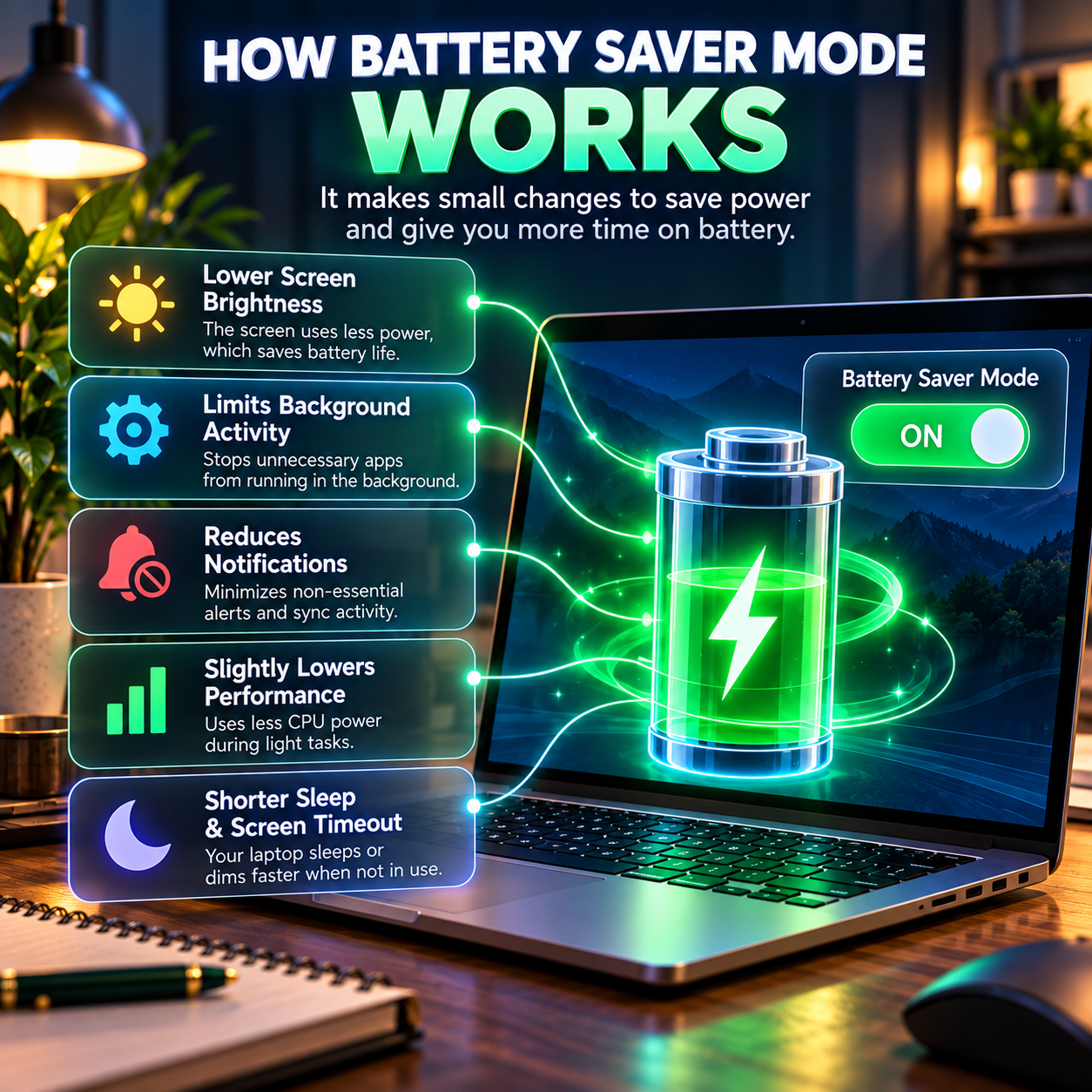
What is battery saver mode? It dims the screen, freezes background processes that aren’t necessary, cuts down on some visual effects, and sometimes even lowers the maximum processing speed of your laptop, to decrease the total power consumption at any given time.
The most frequent modifications that battery saver mode brings about are:
- Automatically reducing screen brightness when it is too bright, as it is usually the biggest power consumer on a laptop.
- Disabling background app refresh and sync, such as checking email or doing cloud backups, while the app is not being used.
- Minimize or disable notifications that aren’t essential for the background processes to run.
- Slightly reducing the CPU performance during light workloads, as lower performance equals lower power consumption.
- Setting sleep and screen timeout so that the laptop locks or dims more quickly when it is not being used.
Does Battery Saver Mode slow down your laptop?
Yes, battery saver mode can cause your laptop to be a little slower when you are doing a heavy-duty task, as it purposely restricts some performance features to conserve battery life, but most people don’t notice a significant difference when using their laptop for normal tasks such as surfing the web or editing documents. The drop in performance is more apparent when you’re doing more intensive tasks, such as video editing, playing games, or exporting large files, because they already tax your processor.
How to enable battery saver on Windows and Mac?
It’s easy to enable battery saver mode on both of the two major operating systems, though the process is slightly different for each.
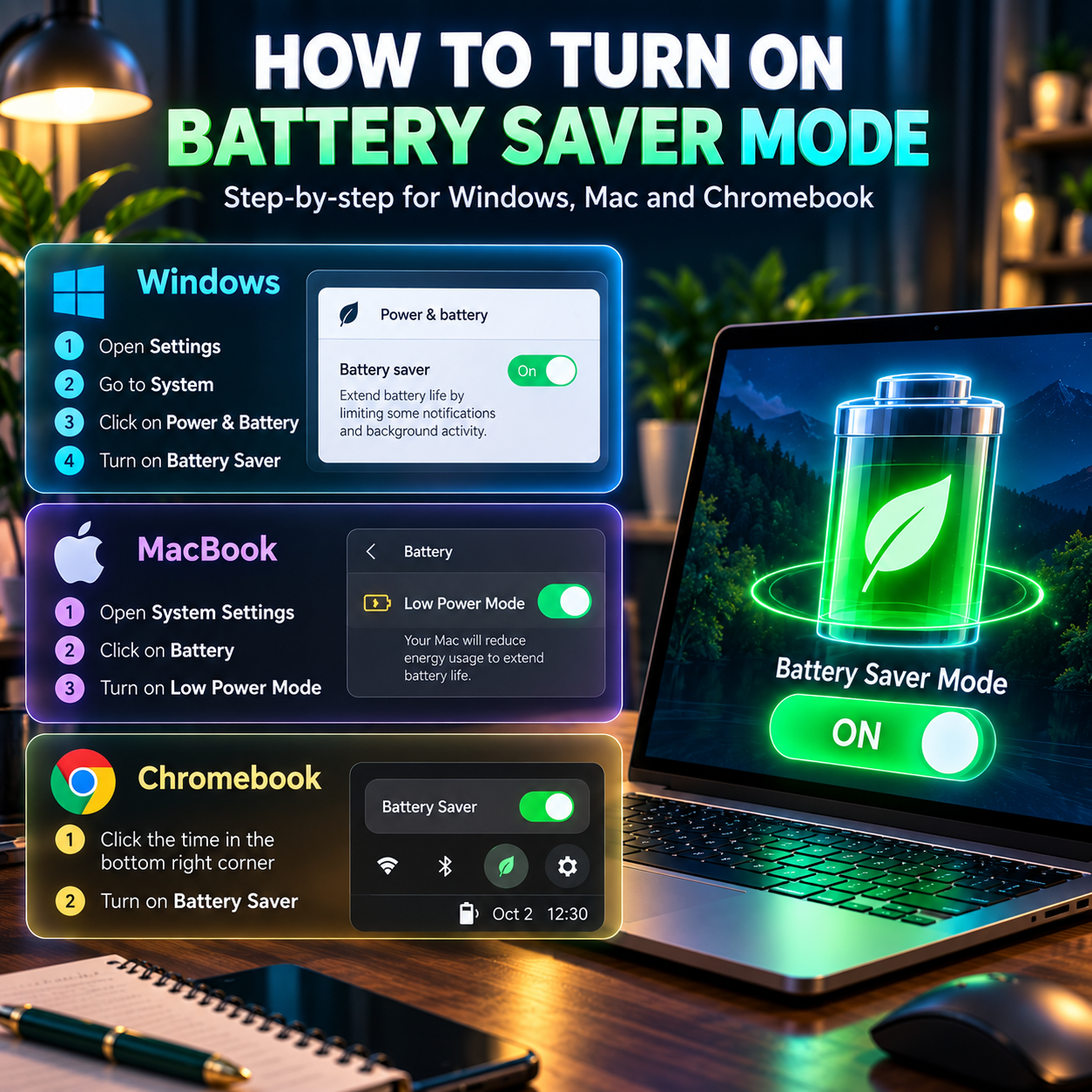
On Windows: Go to Settings, System, then Power and Battery, and you will see a Battery Saver toggle and a setting for when to turn it on when the battery level hits a percentage, typically 20%.
On MacBooks: Go to System Settings, Battery, and turn on Low Power Mode (or set it to turn on automatically only when the MacBook is on battery power). This is similar to battery saver mode on Windows
On Chromebooks: Go to the bottom right corner and see if there is a battery saver or power saving toggle that will turn on when the battery reaches a certain level.
How to set battery saver mode to turn on automatically without having to remember to do it every time?
Most laptops allow you to program battery saver mode so it will turn on automatically when the battery reaches a specific percentage. This eliminates the need to manually switch on battery saver mode whenever you see the battery is low. On Windows, this is the manual Battery Saver toggle that is immediately under Power and Battery settings, and on macOS, Low Power Mode has a similar drop-down menu that can automatically enable it when the laptop is powered by battery instead of AC power.
What is Laptop Battery Saver Mode Most helpful
The most significant battery savings are in light, normal use such as browsing, reading documents, or using a spreadsheet, as these activities already consume relatively little power, and modest brightness and background activity reductions mean a noticeable battery life gain.
It is particularly helpful in the following instances:
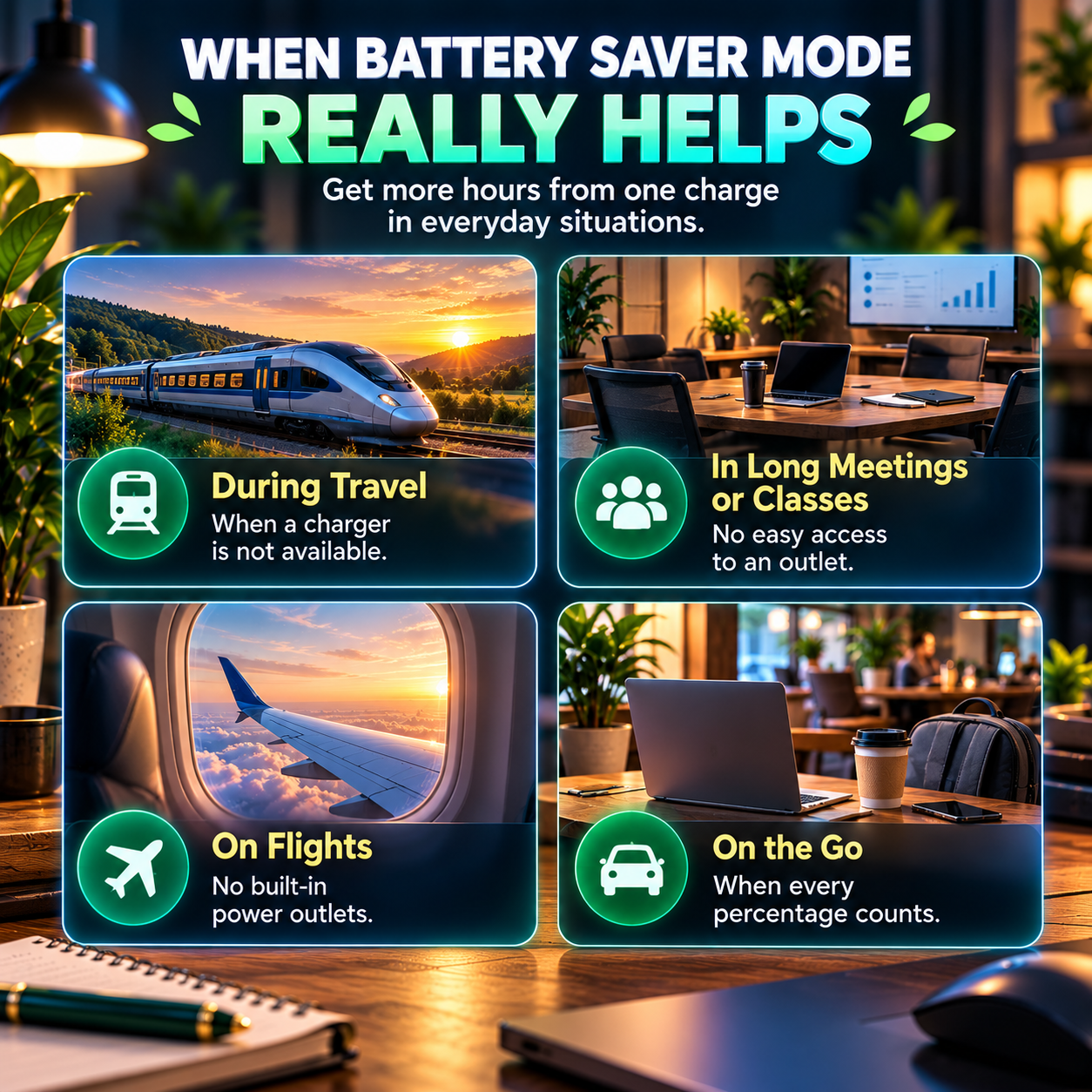
- When a charger is not readily available for several hours during travel.
- When it is not possible to find an outlet in long meetings or classes.
- On flights where there are no built-in power outlets.
- On the road, when every percentage of battery counts.
Comparing the Battery Saver Mode in various situations
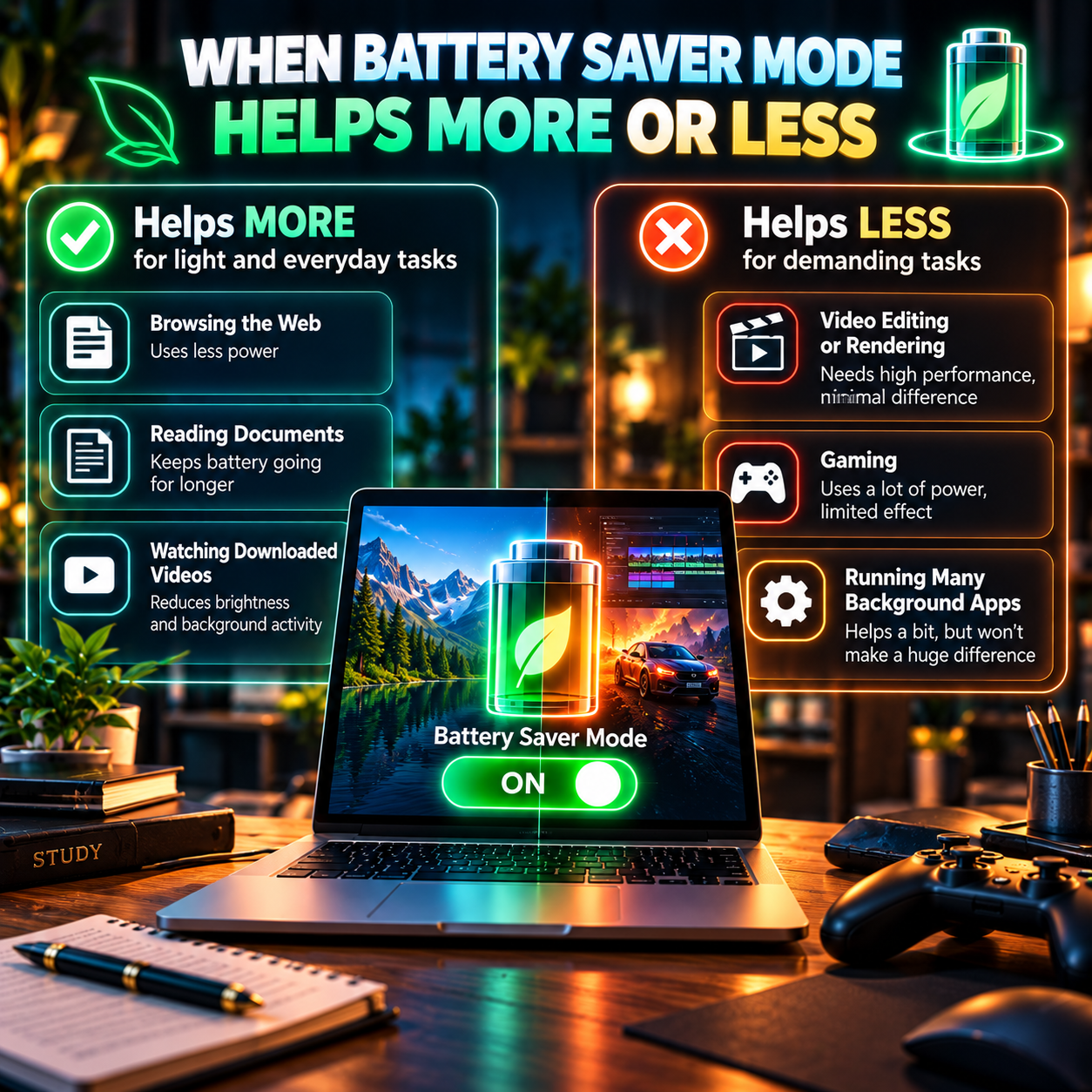
| Situation | Does Battery Saver Help Noticeably? | Why |
| Viewing or reading documents | Yes, significantly | Small reductions have a significant impact when the power draw is low. |
| Watching downloaded video | Somewhat | Even reducing the brightness of the display is still useful. |
| Video editing or rendering | Minimal | Near maximum performance is required for heavy tasks. |
| Gaming | Minimal to none | Most power saving limits are overridden for graphics intensive tasks. |
| Laptop with applications running in the background. | Yes, significantly | Background sync and refresh activity consumes real power |
Common Battery Saver Mode Mistakes
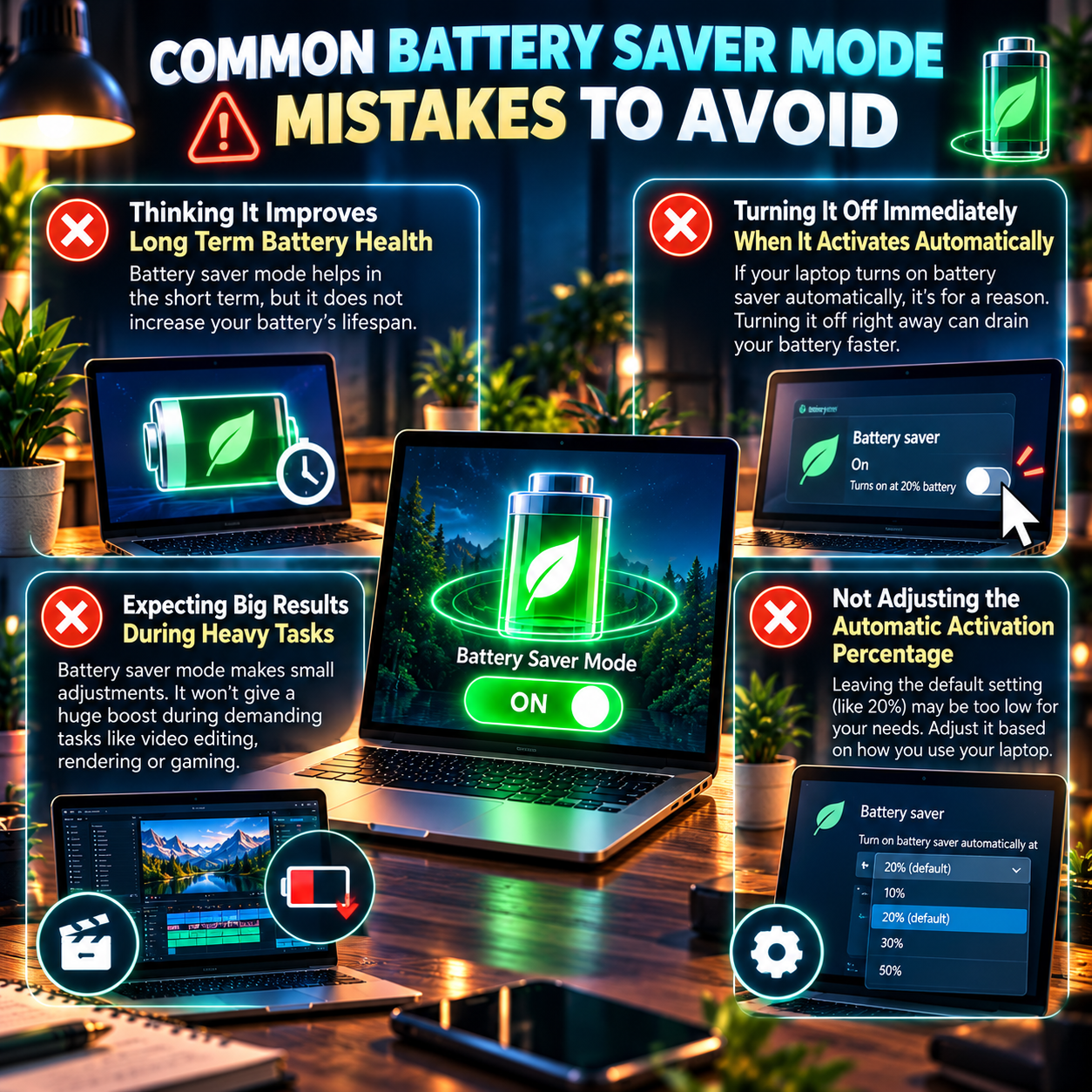
The first mistake is assuming that laptop battery saver mode improves long-term battery health instead of simply extending battery life on a single charge. The solution is to know that it is the ability to set it apart, such as a charge limit feature, that actually helps to preserve long term battery life.
The second mistake is to switch off battery saving as soon as it automatically switches on, without understanding why it has turned on. The solution is to treat the automatic activation as a helpful cue that your battery truly does need conserving – instead of an interruption to dismiss right away.
The third mistake is thinking that battery saver mode will actually make a difference during intensive tasks, such as video editing. The solution is to accept that it won’t be the best performance, because the power-saving options have little effect on tasks that require the processor to run at full speed.
The fourth mistake is failing to adjust the automatic activation percentage to personal practice. If you are prone to leaving the battery uncharged until it’s almost full, set the threshold to 30% or 40%.
FAQ
What is the function of a battery saver which is not provided by a normal power switch?
Battery saver mode combines multiple power saving features together and you could manually turn on each feature individually to get a similar result, but that would be a lot of work.
Will battery saver mode drain the battery when it is off?
No, the battery saving setting just restores the laptop to its default settings, and there is no “battery saving rebound” or additional battery drain from using the battery before.
How can I switch to battery saver mode for specific apps and not my laptop?
Most operating systems use battery saver mode system-wide, but some laptops offer app level battery usage controls, allowing you to limit background usage for a particular power-hungry app.
Is there a difference between the battery saving feature of a laptop and that of a smartphone?
The concept is the same, and the brightness of the display and activity level of the background are reduced, but laptops tend to have more settings to adjust, such as the limit on CPU performance, because the laptop is used for a wider variety of demanding tasks than most smartphones are used for.
Is it OK to keep battery saver mode on all the time, even when plugged in?
It’s not really worth keeping on when plugged in, as power draw is not an issue with a constant power supply, but it will not harm, and some people like to keep it on just to reduce unnecessary background activity.
Quick Summary
- Laptop battery saver mode dims the screen, cuts down on background activity and slightly slows down performance to help preserve battery life.
- It really does help most people when they’re doing light work, such as browsing, but it helps only a little when they’re doing heavy work, such as video editing or playing games.
- Battery saver can be activated manually or automatically when a desired battery level is reached.
- Battery saver mode will not affect long term battery health – it just optimizes the use of your current charge.
- The automatic activation threshold can be customized to your own habits, making the feature much more useful on a daily basis.
For the long haul of battery care, not hours, our full guide on how to make laptop battery last longer has the charging practices and long-term care advice that really help your battery last longer.



Post Comment